
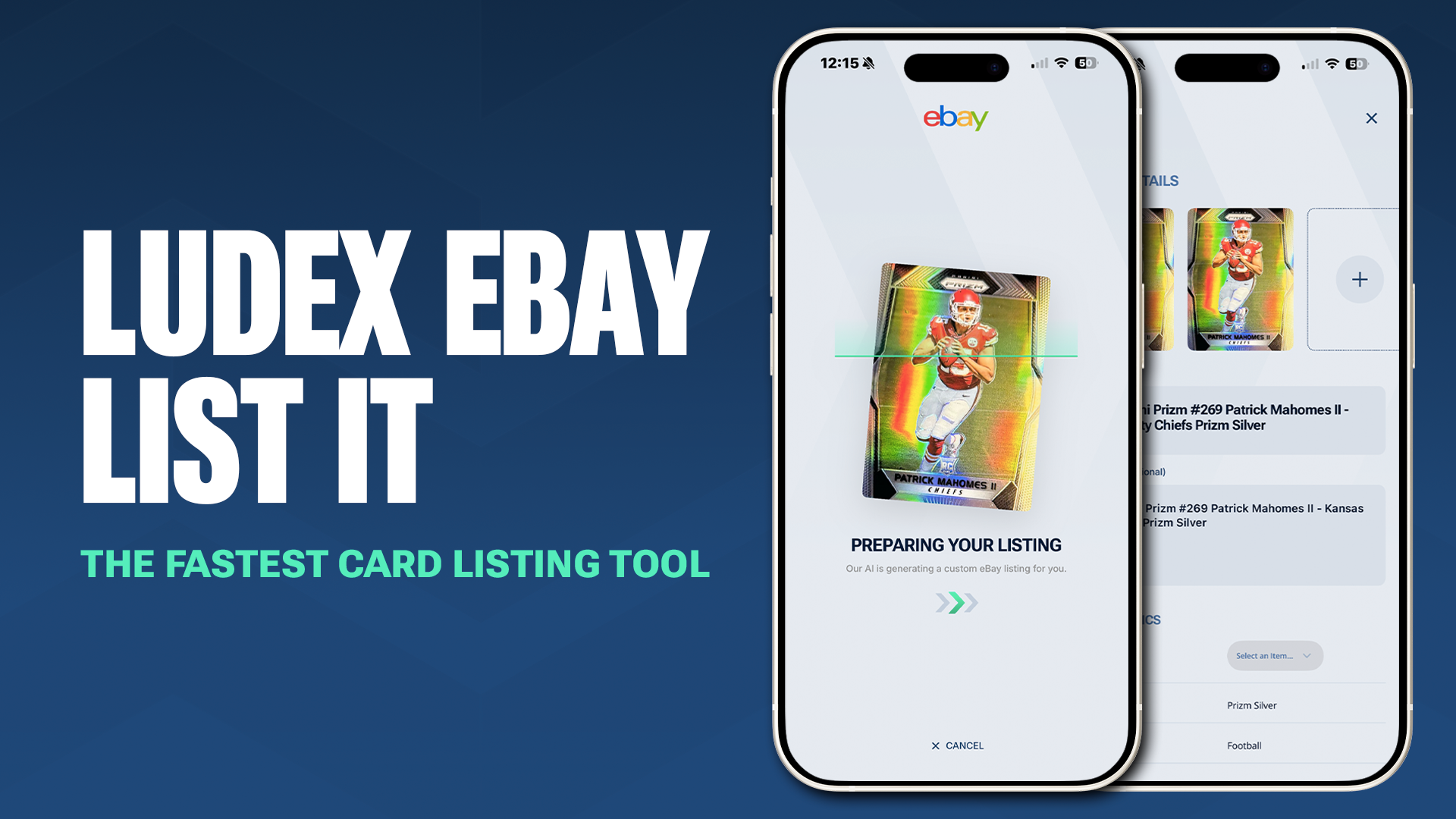
Listing trading cards on eBay has never been easier. With the upgraded List It with Ludex feature, you can scan, price and publish cards directly from your Ludex app in just a few steps in a matter of seconds. The entire process is faster, cleaner, and built to help collectors save time while creating better, more accurate listings.
Here’s your complete guide on how it works.
Before You Begin: Connect Your eBay Account
To start listing cards on eBay through Ludex, you must have an active eBay account.
Step 1: Make an eBay Account
If you do not already have one, create an account at eBay.com.
Step 2: Link Your eBay Account to Ludex
Once inside Ludex:
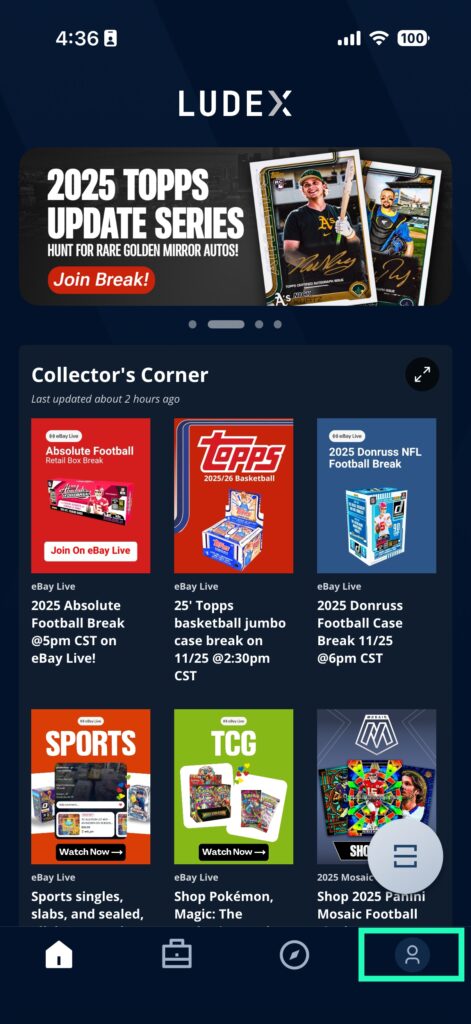
- Open the Settings tab in the Ludex App, which is the profile icon in the bottom right of the app
- Tap Integrations
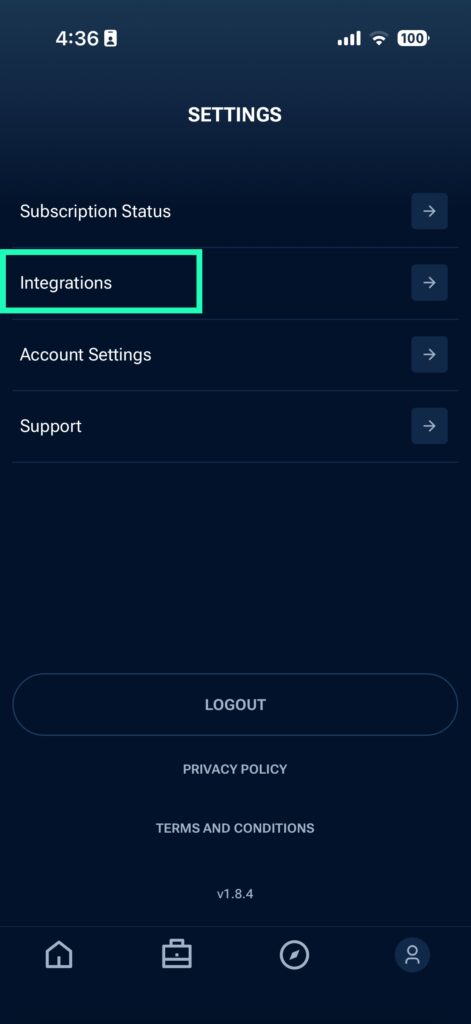
- Tap eBay

- You will be redirected to eBay to log in and authorize Ludex
- Approve the connection and return to Ludex

After completing these steps, your Ludex app is ready to create and publish listings directly to eBay.
How to List Cards with List It with Ludex
Now that your eBay account is connected, you can start listing immediately. Here’s the full workflow from scan to published listing.
Step 1: Scan Your Card
Tap the Scan button in the Ludex app and point your camera at your card. Take a picture of your card and let Ludex identify the card.
The upgraded scanner will identify the card instantly, including:
- Set
- Year
- Player
- Team
- Variation
- Parallel
- Card number
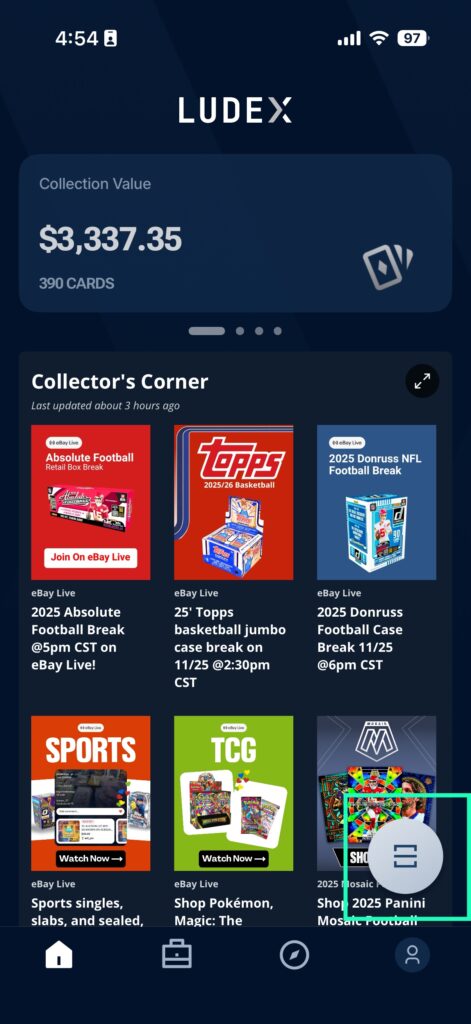


This metadata auto-populates into your future eBay listing, saving you from manually entering information.
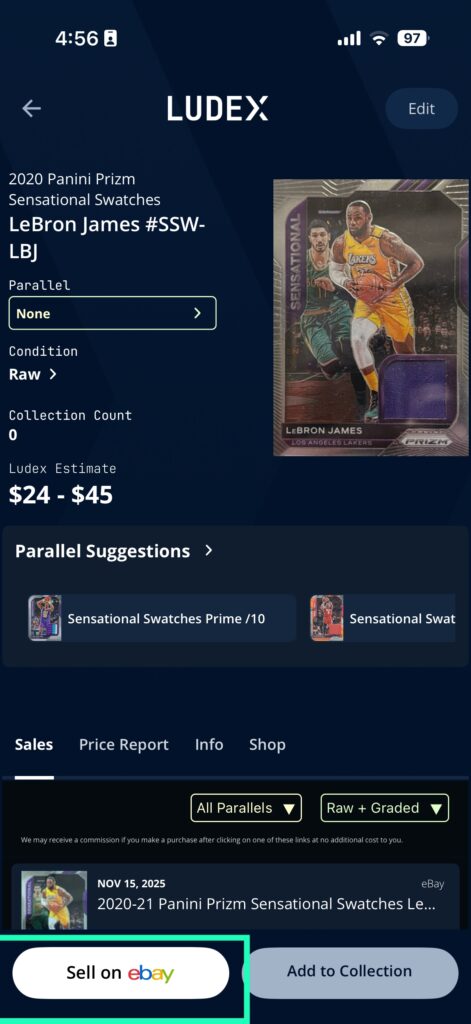
Step 2: Tap Sell on eBay
After the scan, select the Sell on eBay at the bottom left of the screen.
This begins the newly redesigned listing flow, guiding you through each step without confusion.
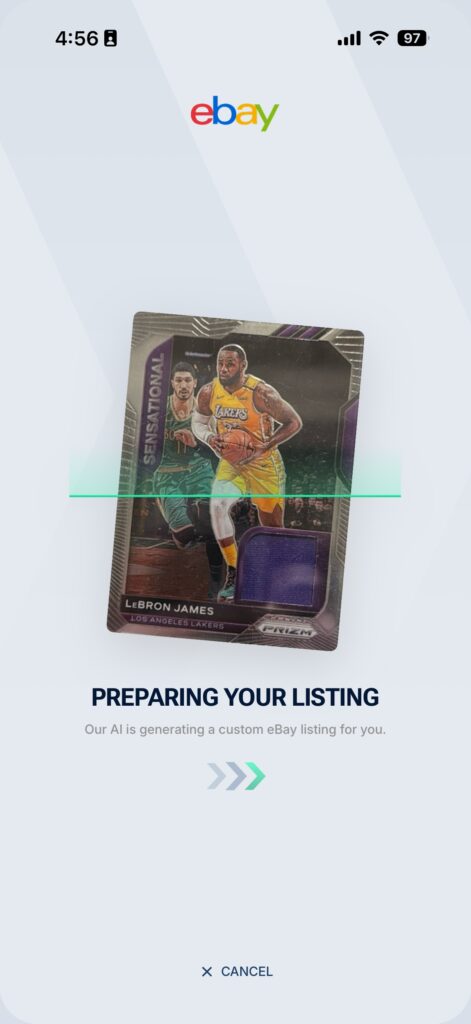
Step 3: Preparing Your Listing
The Preparing Your Listing page guides you through all the required details your card needs before it can go live on eBay.
Review Auto-Filled Details First
Ludex automatically fills in all essential metadata from your scan, including:
- Set
- Player
- Team
- Year
- Insert
- Parallel
- Card number

This saves you time and gives your listing a clean, accurate foundation.
Upload Your Photos
Use the improved photo uploader to add several images directly through Ludex. Include front, back and close-ups of important details to help your listing stand out.
Once you complete these required fields, you’re ready to move to the final review stage and post your listing live on eBay.

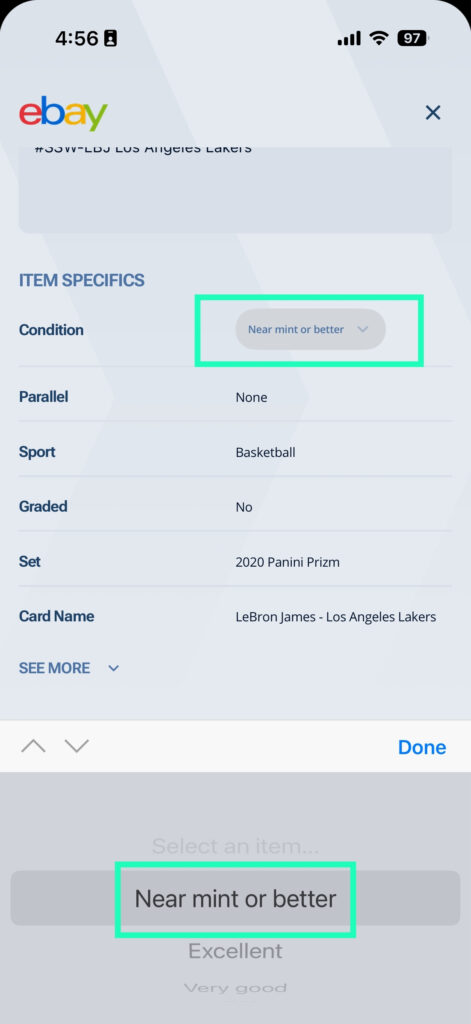
Select Your Card’s Condition
eBay requires every listing to include an item condition. Choose the option that best matches your card so buyers know exactly what they are receiving.
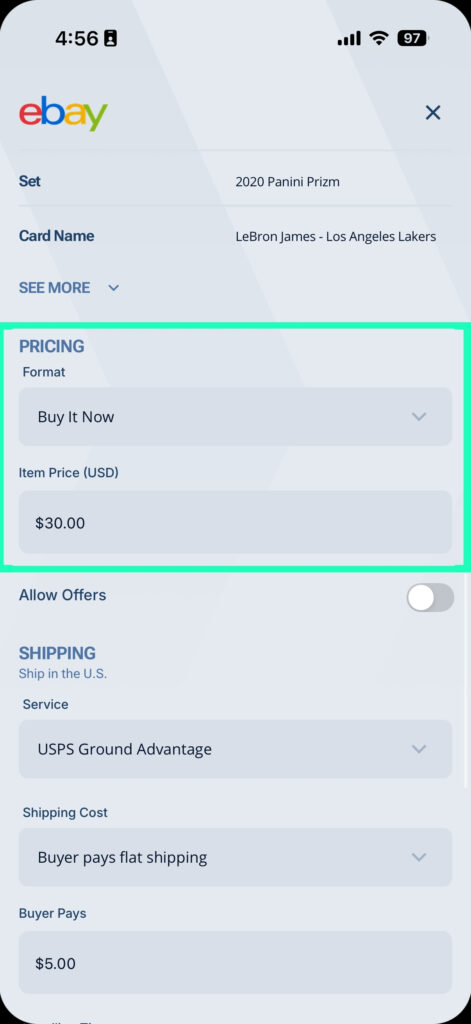
Set Your Price and Listing Format
To publish your listing, you must choose a format and a price.
Select Auction or Buy It Now, then enter either your starting bid or your fixed price. Ludex shows real time market pricing from recent eBay sales to help you make the best decision.
Choose Your Shipping Details
Every eBay listing requires shipping information.
Select:
- Where you are shipping from
- Your preferred shipping service (such as USPS Economy, First Class or Priority)
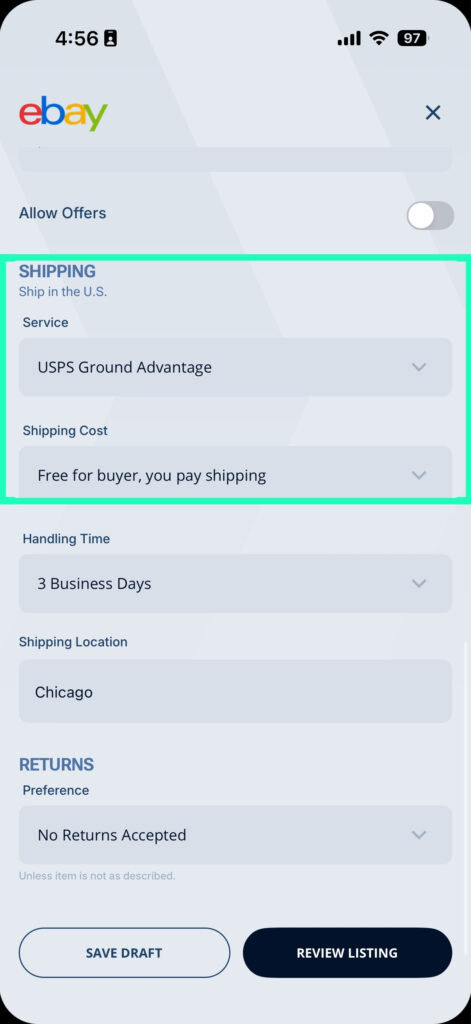
These details help ensure the listing is complete and accurate for buyers.
Step 4: Save a Draft (Optional)
If you are creating several listings or need to pause, you can save your work as a draft.
The new Draft Page lets you:
- Store unfinished listings
- Edit them anytime
- Discard drafts using the new X button in the corner

This makes batch listing easier than ever.
Step 5: Review Your Listing
Your next screen is the improved Review Page.
Here you get a clean preview of:
- Title
- Description
- Pricing
- Shipping
- All attached photos
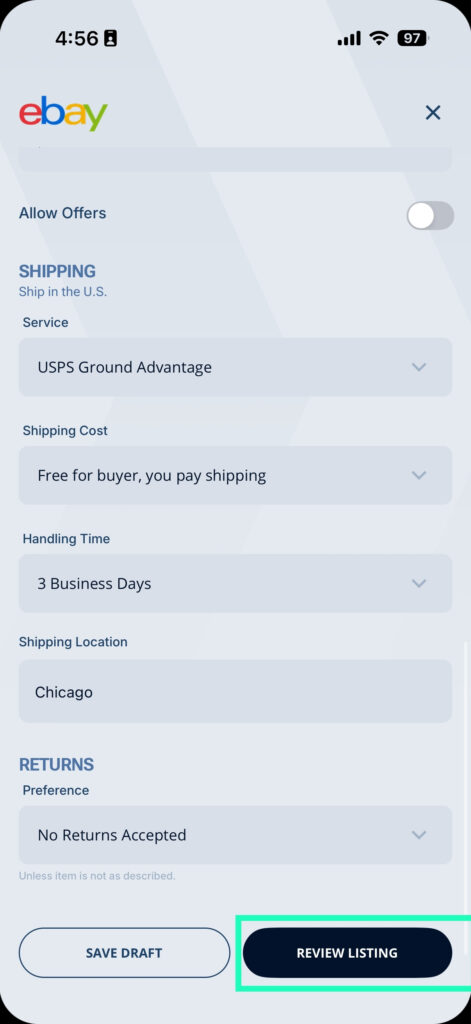
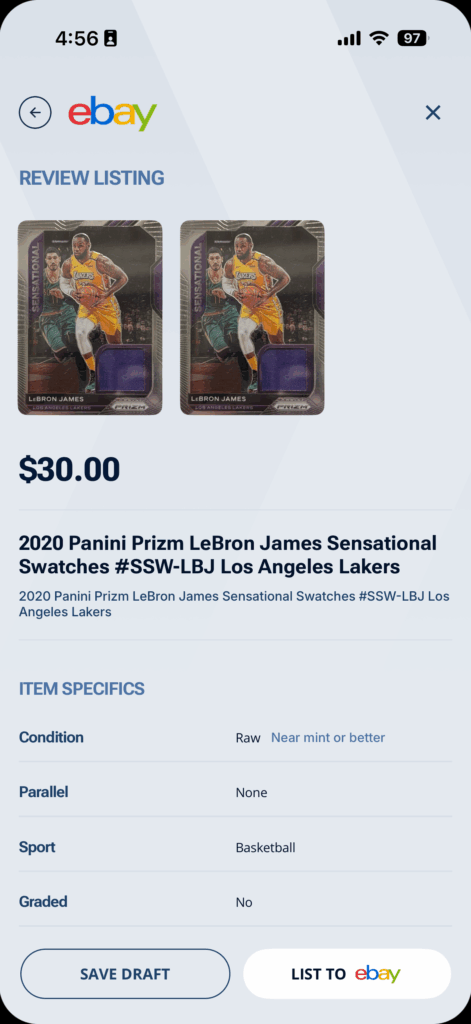
Check everything, make adjustments if needed and get ready to publish.
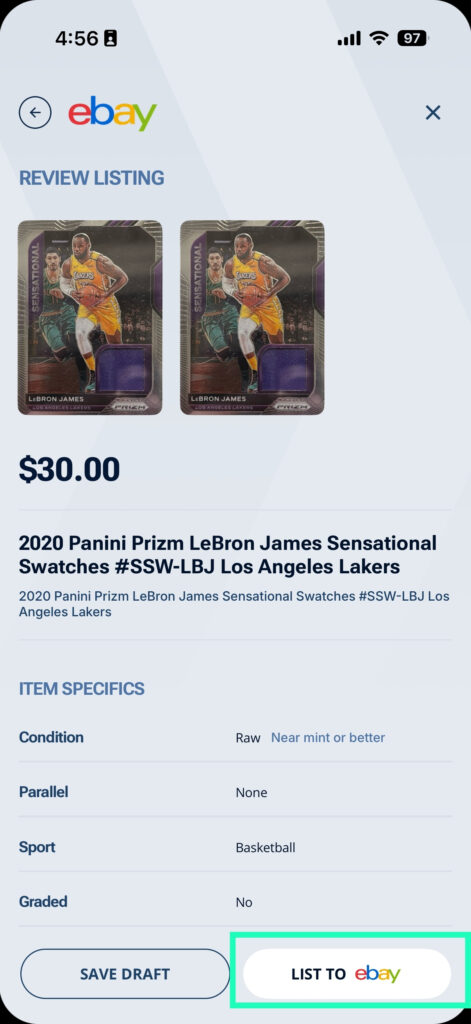
Step 6: List To eBay
Once everything looks right, tap List To eBay.
From there:
- Ludex sends the listing to eBay
- Your card now appears as a live listing
- Ludex marks the card with a Published tag in your portfolio
- You can tap View on eBay to see the final listing live (this feature has been fixed and now works reliably)
How Many eBay Listings Can You Make Each Month?
Your Ludex membership determines how many eBay listings you can publish through the app:
- Free: 5 eBay listings
- Lite: 50 listings in your selected category
- Standard: 50 listings in any category
- Pro: 250 listings in any category
All paid tiers include unlimited portfolio storage and full access to scanning and pricing features.
The updated List It with Ludex feature was built to take the stress out of selling. From faster scanning to cleaner listings to instant publishing, the entire process feels easier than ever. If you’re ready to move cards from your collection into the hands of new buyers, download Ludex and start listing today.
The Ludex app is here to help you track and manage your trading card collection. Click HERE to download the Ludex mobile app for FREE!


Want more Ludex content?
Sign up for the LUDEX Newsletter to recieve the lastest posts right to your inbox!


